Getting Started with ECS Exec for ECS Fargate.
If you are using ECS Fargate to run your services in AWS, you most likely faced the need to ssh into the running container in order to troubleshoot something (collect the dumps, profile the app, check connectivity to 3rd party services etc.).
But before March 16th 2021 you had no straightforward option to achieve this. There were workarounds like putting ssh server in a container, but its most likely not what you’d like to spend time on when something goes wrong.
For EC2 backed clusters the situation was better since you have an access to the underlaying EC2 machine and you may reach containers from there and run docker exec, for Fargate it’s not an option because of serverless nature of the cluster.
Good news is that Amazon has recently released the feature called ECS Exec, which gives you an ability to run commands on your containers (Both Fargate and EC2).
In this article I’m going to walk through the steps needed to be performed on your Fargate cluster in order to use it (I’m not covering setup for ECS EC2 cluster, but most of the steps will be the same).
How it works
ECS Exec is using AWS System Manager service, in particular Session Manager capability. So in order for ECS Exec to work you need to
- Have SSM agent installed for your ECS Task (For Fargate its handled by AWS since Fargate 1.4)
- Task should have proper permissions to allow Agent to establish connection with Session Manager
- Execute Command flag should be enabled for the task
When you run ecs execute command SSM establish connection with SSM agent on the container and allow to run the commands there.
Basic steps to enable ECS Exec for your Fargate tasks
Prerequesites
- Let’s assume that we already have an ECS cluster up and running with a service running in a Fargate mode.
- Platform Version for your service should be
1.4+.
Minimum Set of Steps to execute command on ECS Container
Let’s get started.
1. Install AWS CLI
First of all you need to make sure the latest AWS CLI (or the version with execute command option supported for ecs service) is installed and aws profile is configured. (Installation guide may be found here, aws profile configuration here)
To verfy instalation enter the next command in the terminal you use.
aws --version
This should print CLI version installed on your machine.

2. Install Session Manager CLI plugin
Then since ECS Exec is using session manager to initiate session with your containers, we need to install AWS Session Manager plugin for CLI. (For more details please check AWS documentation)
To veriy the installation execute the next command:
session-manager-plugin
It should produce the message as on the screen below

3. Setup ECS Task to allow ECS Exec
For each fargate task there is an SSM agent available in order to establish connection with SSM Service.
In order to make this connecton successfull, we need to attach IAM policy to our ECS Task which allows SSM agent to establish connection with SSM Service.
First of all you need to go to IAM in AWS Console (or CLI whatever you prefer) and create the policy as below
{
   "Version": "2012-10-17",
   "Statement": [
       {
       "Effect": "Allow",
       "Action": [
            "ssmmessages:CreateControlChannel",
            "ssmmessages:CreateDataChannel",
            "ssmmessages:OpenControlChannel",
            "ssmmessages:OpenDataChannel"
       ],
      "Resource": "*"
      }
   ]
}
After the policy is created you need to attach this policy to IAM Role which is used by your ECS Task, if no role is assigned to your ECS task you need to create one and attach the policy.
In my case the role looks like on the screen below

If your task definition has no role assigned (or different role is assigned) you need to create new task defenition revision with the role created above assigned.
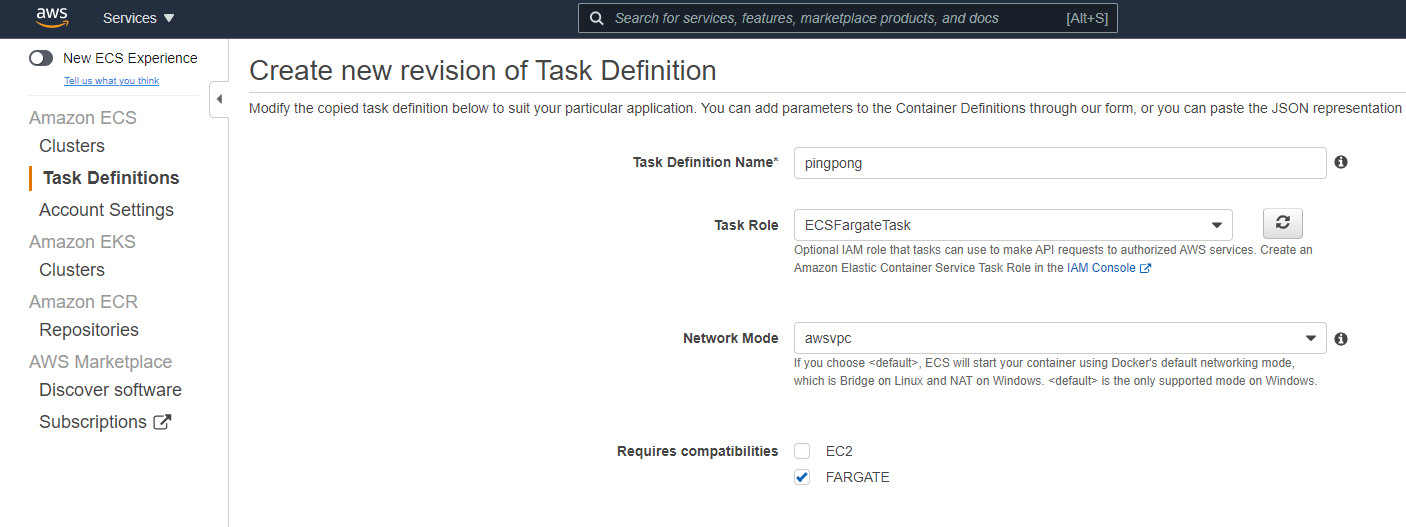
Ok, now we have new task defenition which should have all required permissions to establish SSM connection.
The next step would be to update task with the new task definition and enable SSM agent for this task.
Important Note: As of today (April 25, 2021) ECS Exec is not supported by AWS Console (so no way to setup via UI). In this article we are using AWS CLI, but you may also enable the same functionality using CloudFormation or Terraform (AWS Provider 3.34.0+) depending on what you are using to provision your infrastructure.
Since we assume that service is already deployed we need to update service to use new task definition we’ve created (With proper role assigned). See the command below
aws ecs update-service --cluster cluster_name --service service_name --task-definition task_definition:task_definition_revision --enable-execute-command
Basically here you need to provide cluster_name, service_name, task_definition with task_definition_revision and one more important flag named --enable-execute-command, this flag tells AWS that SSM agent should be enabled for this task.
To check if SSM agent was enabled execute the next command
aws ecs describe-tasks --cluster cluster_name --tasks task_id
Where cluster_name should be replaced with the name of your ECS cluster and task_id with id of the ECS task you want to check.
To get task_id navigate to your ECS service details as on the screen below

If everything was done correctly you should get the task details with the next information
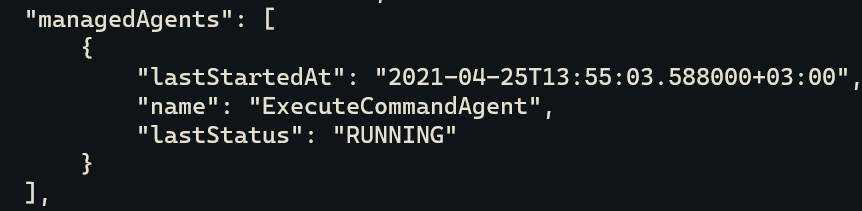 That means the agent is up and running.
4. Execute command from your machine
Now you are all setup to run the commands on your containers remotly. Enter the next command in order to open interactive bash session to your container. (In my case the container is running on Ubuntu, but if you are using other Linux distibutions you may need to replace bash with whatever terminal is used there.)
aws ecs execute-command --cluster cluster_name --task task_id --container container_name --interactive --command "bash"
Where cluster_name - name of the cluster, task_id - id of the ecs task, container_name name of the running container.
(container_name may be obtained from task details in AWS Console or using AWS CLI)
After the command is executed you should enter console of the ECS Container

Thats it, now you are inside the container, enjoy your power :)
Limitations
There are the next main limitations exist currenty for the ECS Exec:
- Supports only Linux containers.
- AWS Console ui does not support execute command flag.
- You cant enable ECS Exec for running task, you need to recreate it.
- More can be found here.
Conclusions
We’ve covered the basic steps needed in order to use ECS Exec.
I intentionally skipped more advanced details like command logging, security and audit configuration to keep this post as simple as possible.
This basic approach may be very useful when it comes to troubleshooting issues with your containers on non-prod environments, for prod environments you may want to dig dipper in security and audit configuration and restrictions before enabling it (See the liks below for more details).